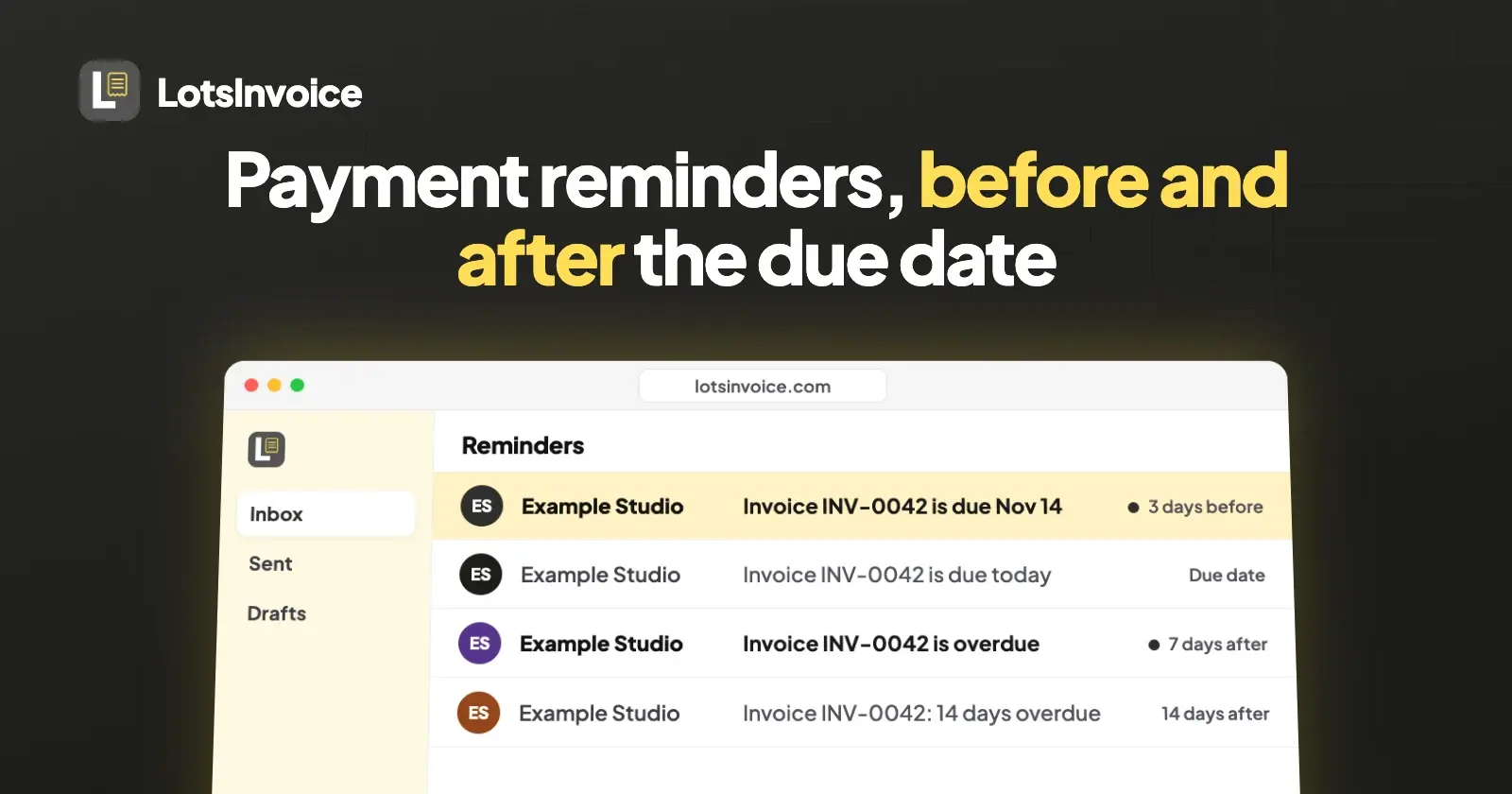
A good payment reminder is short, polite and specific: the invoice number, the amount, the due date and how to pay. Send one a few days before the due date, one on it, and a firmer one each week after it. Below are six ready-to-copy templates for those moments, and how to have LotsInvoice send them for you.
The six reminders, in order
In every template, the words in curly brackets are placeholders. In LotsInvoice they fill in by themselves from the invoice: {customer}, {number}, {total}, {balance}, {due_date} and {business}. In your own email app, type the real values in their place. Each one is plain text, so copy it as it is. The subject lines are for when you send from your own email app; a reminder sent from LotsInvoice uses the subject in your Reminders settings, or the standard one.
1. Three days before the due date
Subject: Reminder: Invoice {number} is due {due_date}
Hi {customer},

A friendly reminder that invoice {number} for {balance} is due on {due_date}.

The button below opens the invoice and shows how to pay. If anything on it needs changing before then, reply to this email and I'll sort it out.

Thank you,
{business}
This one is a courtesy. It also gives a client who has not seen the invoice, or who needs a purchase order or a sign-off, time to act before the date.
2. On the due date
Subject: Invoice {number} is due today
Hi {customer},

Invoice {number} for {balance} is due today, {due_date}.

You can view it and pay from the button below. If payment is already on its way, thank you, and please ignore this note.

{business}
3. Seven days after
Subject: Reminder: Invoice {number} is overdue
Hi {customer},

A friendly reminder that invoice {number} for {balance} was due on {due_date}, and I haven't seen the payment yet. If you have already paid, thank you, and please ignore this email.

If something is holding it up, such as a missing purchase order or an approval, tell me and I'll help get it moving. The invoice and the ways to pay are behind the button below.

Thank you,
{business}
4. Fourteen days after
Subject: Invoice {number} is now 14 days overdue
Hi {customer},

Invoice {number} for {balance} was due on {due_date} and is now two weeks overdue. I would like to get this settled this week.

Could you let me know when I can expect payment? If there is a problem with the invoice, tell me what it is and I will fix it straight away. The invoice and how to pay are behind the button below.

Thank you,
{business}
5. Thirty days after
Subject: Invoice {number}: can we talk about payment?
Hi {customer},

Invoice {number} for {balance} was due on {due_date}, and I haven't had a payment or a reply to my earlier emails. I'd rather sort this out with you directly than keep writing.

Are you free for a short call this week, or can you tell me by reply when payment will be made? If you would like to pay in parts, tell me what you can do and I'll look at it.

{business}
Fix the "call" and the part-payment offer to match what you are really willing to do. If your agreement says what happens next (pausing work, a late fee), you can mention it here in one sentence, but only if it was already in what your client agreed to. Anything beyond that, such as collections or legal steps, is a decision for you and your own adviser.
6. After a part payment
Subject: Invoice {number}: balance of {balance} remaining
Hi {customer},

Thank you for your payment on invoice {number}. A balance of {balance} is still open, and it was due on {due_date}.

The button below opens the invoice. Please let me know when I can expect the rest.

{business}
In LotsInvoice, {balance} is what is still owed, not the invoice total, so this template is right for a part-paid invoice as it stands.
Tone, in plain terms
- Say the facts. Number, amount, due date, how to pay. A reminder with all four gets answered, and one without them gets a question back.
- Assume it is an oversight first. A late invoice is often an oversight, or waiting on someone's approval. The first two follow-ups should read that way.
- Keep one idea per email. The invoice, the amount and the question. No history of the project.
- Get firmer in steps, not all at once. Each message is a little more direct than the last, and the last asks for a conversation.
- Don't threaten. Say what you will do, in a sentence, only if you really will and your agreement allows it.
- Pick a rhythm and keep to it. Chasing everyone the same way is fairer, and easier, than deciding afresh each time.
How LotsInvoice sends these for you
LotsInvoice sends reminders on its own for invoices that have been sent, have a due date and are not paid, and stops when an invoice is paid or void. This is on every plan, and it is on from the start.
| When | Counted from the due date |
|---|---|
| 3 days before | -3 |
| On the due date | 0 |
| 7 days after | +7 |
| 14 days after | +14 |
Each reminder goes out once per invoice, by your business's time zone. To change it, open Settings, then Reminders: switch reminders off, remove a day, or add your own, up to 8 reminder days in all, from 60 days before the due date to 365 days after. To get template 5, add day 30.
The wording
Without any setup, LotsInvoice already writes a before-the-due-date message and a different, overdue one, in the spirit of templates 1 and 3, with the subject lines "Reminder: Invoice {number} is due {due_date}" and "Reminder: Invoice {number} is overdue".
If you set your own Subject and Message in Settings, that wording is used for every scheduled reminder, before and after the due date. So the message there needs to read well on day -3 and on day +14. This one does:
Subject: Reminder: Invoice {number} for {balance}

Hi {customer},

A reminder about invoice {number} for {balance}, due on {due_date}. If you have already paid, thank you, and please ignore this email.

The invoice and the ways to pay are behind the button below. If anything needs sorting out, reply to this email.

Thank you,
{business}
Every reminder email has a View invoice button that opens the client's private invoice page. If online payment is on for that invoice, it also has a button that names the balance still owed, such as "Pay $450.00 online", which opens the invoice's short pay link at pay.lotsinvoice.com; otherwise it shows your own pay button if you have set a pay link. The PDF is not attached again, and replies go to your business email. Bank details are not in the email itself; the client finds them on the invoice page, so your message needn't repeat them.
Send the firmer ones yourself
For the 14-day and 30-day messages, you probably want your own words and your own judgement. Open the invoice and choose Remind, paste the template into Message, and send. A manual reminder works on any sent invoice that isn't paid or void, and it does not use up one of the scheduled ones. The dashboard home also lists your overdue invoices, oldest first, so you can see whom to chase.
Stop reminders for one invoice
If you are already talking to a client about an invoice, open it and turn off Send reminders for this invoice under Automatic reminders. The rest of your invoices keep the normal schedule. The switch appears once reminders are on for your business, and it works on invoices you have already sent. An assistant or the API can also set this, or give one invoice its own days; turning reminders back on that way needs the Send permission.
Part payments and "I've sent payment"
A part-paid invoice keeps getting reminders, and each shows the balance still owed. A client who pays online with the Pay button has the payment recorded on the invoice by itself, and the reminders stop once the invoice is fully paid. A client who pays another way, such as a bank transfer, Zelle or a check, can press I've sent payment in their portal: you get an email, but the invoice is not marked paid. You record that payment when the money arrives, and the reminders stop then. Online payments go straight to your own Stripe or Razorpay account; LotsInvoice never holds or moves your money. The full story of the portal is in Client Portal and Payment Reminders in LotsInvoice, Explained.
For small studios
In a studio, the person who delivered the work is often not the person chasing the invoice. Keep the templates short and put one named contact at the bottom, so the client knows who replies. For a retainer, add the month to your own subject line so the right invoice is easy to find. Each business in LotsInvoice has its own reminder schedule and wording, so a studio with more than one brand can set a different tone for each.
Using your AI assistant, if you like
LotsInvoice works with the AI agent you already use. Connect it at lotsinvoice.com/mcp and it can list late invoices, draft the reminder for you to approve, and send it with send_reminder once you say yes (sending needs the Send permission you give it). Everything it does shows in the dashboard too. A prompt that keeps you in charge:
Read https://lotsinvoice.com/skill.md. In my LotsInvoice business, list the invoices that are more than 14 days overdue, with the client and the balance. For each, write the reminder using my 14-day template below and show it to me. Send nothing until I say yes.
What it costs
Reminders are part of every LotsInvoice plan. A plan starts at $12 a month per business, or $120 a year, with unlimited invoices, customers and team members inside the business. You can also start with free credits when you sign up, no card, enough to run one business for about a month (pricing checked on 29 October 2026 at lotsinvoice.com/pricing).
FAQ
How soon after the due date should I send a payment reminder?
There is no fixed rule. A common and polite rhythm is a note before the due date, one on it, and then one a week and two weeks after. LotsInvoice's default schedule is exactly that: 3 days before, on the due date, then 7 and 14 days after. Choose a rhythm you are comfortable with and use it for every client.
What should a payment reminder email include?
The invoice number, the amount still owed, the original due date, a way to see the invoice, how to pay, and who to reply to. In LotsInvoice the reminder email carries a View invoice button and, when online payment is on, a pay button for the balance (otherwise your own pay link), and it fills in the number, balance and due date for you.
Can I use different wording before and after the due date?
LotsInvoice's standard wording already differs: one message before the due date and another once it is overdue. If you write your own message in Settings, it is used for all scheduled reminders, so write one that works for both. For a firmer message later on, use Remind on the invoice and paste your own text.
Can I stop reminders for one client or one invoice?
Yes. Open the invoice and switch off Send reminders for this invoice. Other invoices keep the business schedule. You can also switch reminders off for the whole business in Settings.
Does the reminder attach the invoice PDF?
No. The email has a View invoice button that opens the client's private page, where they can download the PDF and see how to pay. The PDF is attached to the original invoice email.
Should I charge a late fee?
Only if your agreement or invoice terms said so before the invoice was due. What is allowed depends on where you and your client are, so check your terms and local rules before you add one. A reminder doesn't need to mention a fee to be effective.
Sources
Checked on 29 October 2026: lotsinvoice.com/pricing, skill.md, API docs, tool list, pricing-facts, and the product's reminder, email and dashboard code. Online payments were checked on 30 October 2026 against lotsinvoice.com (home and pricing FAQs) and its Stripe and Razorpay help pages. The reminder email's pay button and the per-invoice reminder switch were checked in the product code on 31 October 2026.
Related: How Clients Pay You With LotsInvoice and Is LotsInvoice safe?.