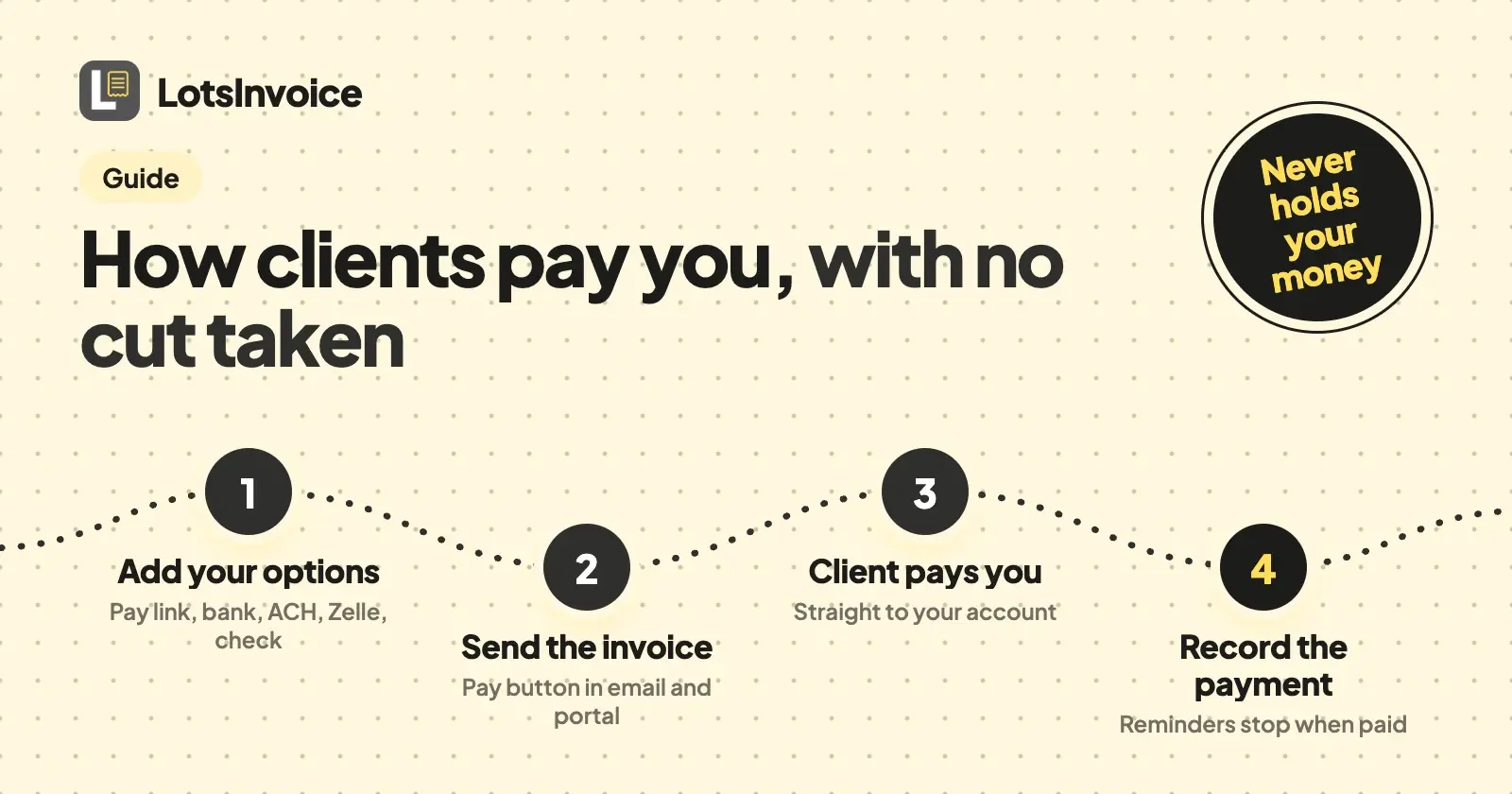
Your clients pay you directly, with the options you already use: a pay link (Stripe Payment Link, PayPal, Venmo, Cash App or Square), bank transfer or ACH details, Zelle, a mailing address for checks, or UPI on INR invoices. LotsInvoice shows them on every invoice, in the email and in the client portal. It never holds your money and takes no cut.
That's the whole model. LotsInvoice makes the invoice exact, sends it from your business name and follows up until you're paid. The money goes from your client to you, through your own provider or your own bank. When it arrives, you record it, and the invoice is marked paid. This guide shows each payment option, where your client sees it, what happens when they pay, and what it costs. Everything here was checked in the product on 20 October 2026.
The payment options at a glance
| Option | What you enter | What your client sees | Fees |
|---|---|---|---|
| Pay link | One https link from Stripe, PayPal, Venmo, Cash App or Square, and the button text | A pay button in the email and the portal, and the link on the PDF | Your provider's own fees. LotsInvoice adds none |
| Bank transfer or ACH | Only the fields your clients need: bank, account name, account number, account type, routing number (ABA), IBAN, SWIFT/BIC, sort code, BSB, IFSC, branch, bank address | Your bank details on the invoice and in the portal | LotsInvoice adds none |
| Zelle | Your Zelle email or phone | Your Zelle details | LotsInvoice adds none |
| Check | Who checks are payable to, and where to mail them | Payee and mailing address | LotsInvoice adds none |
| UPI (INR invoices) | Your UPI ID and payee name | A UPI QR code with the amount due, on the invoice and in the portal | LotsInvoice adds none |
| Other instructions | Free text, such as a reference to quote or a second way to pay | Your instructions, as written | Not applicable |
Fill in any of them, or all of them. Whatever you fill in appears on your invoices, in the invoice email and in the client portal. Credit notes don't show payment options, because nobody pays a credit note.
Step 1: add your payment options once
In the dashboard, open Settings, then Payment options ("How customers pay you"). You set them once per business, and every invoice after that carries them.
- Pay link. Paste a link that starts with https://, such as a Stripe Payment Link (
https://buy.stripe.com/...), a PayPal.me link, or a Venmo, Cash App or Square link. LotsInvoice recognises the provider from the address. Write the button text your client will see, such as "Pay by card" or "Pay by card or ACH". If you leave it empty, the button says "Pay online". - Bank or ACH details. Fill in only what your clients need. A US client paying by ACH needs the account name, account number and routing number. A client abroad may need the IBAN and SWIFT/BIC instead.
- Zelle. Your Zelle email or phone number.
- Checks. Who checks are payable to, and the address to mail them to.
- UPI. For invoices in INR: your UPI ID and payee name. Each INR invoice prints a QR code with the amount due already in it.
- Other instructions. Anything else, in your words: "Please quote the invoice number as the reference."
Save, then open any draft invoice. The preview shows the real PDF, so you see exactly how your payment details sit on the page before a client does.
One pay link button appears per business. If you take both Stripe and PayPal, put the one you prefer as the button and the other in "Other instructions". If one client needs different details, an assistant connected to LotsInvoice can set payment options on that single invoice (more on assistants below).
Step 2: send the invoice
When you send, your client gets an email from your business name with the PDF attached, a link to their private client portal, and your pay button. Replies come to you.
In the portal, your client sees the invoice, their balance, their statement and your payment options in one place. If you added a pay link, the button is there too. Payment reminders, before and after the due date, carry the same pay button, so the way to pay is always one click away from the reminder.
Step 3: your client pays you, directly
Your client pays the way they choose from the options you gave them:
- With your pay link, they pay on your provider's page: Stripe, PayPal, Venmo, Cash App or Square. The money lands in your account with that provider, under that provider's terms.
- With bank, ACH, Zelle or check, the money goes from their bank to yours.
LotsInvoice is not in the middle of any of it. It never sees a card number, never holds a balance and never pays you out, which is why it can't take a cut.
In the portal, your client can press "I've sent payment" and add a note. You get an email saying they've paid. It doesn't mark the invoice paid, because only you know when the money has actually arrived.
Step 4: record the payment when it arrives
When the money is in your account, record it on the invoice: the amount, the date, the method and a reference if you have one. Methods are bank transfer, ACH, wire, card, check, cash, PayPal, Venmo, Zelle, Stripe, UPI or other.
- Part payments are fine. Record what arrived and the invoice shows the balance still owed.
- Overpayments become credit for that client, which you can apply to their next invoice.
- Reminders stop once the invoice is paid.
- Reports show payments received by method, so you can see how much came by card link and how much by bank, and export it as CSV for your accountant.
Nothing is marked paid automatically. That's deliberate: an invoice says "paid" only when you've seen the money.
What it costs to get paid
LotsInvoice adds no fee to any payment, by any method. You pay for LotsInvoice per business: Starter is $12 a month or $120 a year (from $10 a month billed yearly), with unlimited invoices, clients and team members inside the business. The details are in LotsInvoice pricing explained and on the pricing page.
What your client's payment costs you depends on the provider you chose, and you pay it to them:
- Stripe Payment Links are included at no extra charge with Stripe's standard payments pricing; Stripe's card rate is 2.9% + 30¢ for domestic cards, with extra for international cards and currency conversion. If you turn on Stripe's post-payment invoices for a link, Stripe charges 0.4% of the transaction for that. (Stripe's pricing page, checked on 20 October 2026.)
- PayPal, Venmo, Cash App and Square charge their own rates for the payment type your client uses. Check your provider's fee page for the rate on your account.
- Bank transfer, ACH, Zelle and checks don't pass through LotsInvoice at all. Any bank charges are between you, your client and your banks.
A simple setup for an agency: a card link for clients who want to pay by card, and bank or ACH details on the same invoice for clients paying large retainers. Each client picks.
Set it up from your AI assistant
LotsInvoice works with the AI agent you already use, when you want it. If you work in Claude or ChatGPT, connect it at lotsinvoice.com/mcp and ask:
Read https://lotsinvoice.com/skill.md. In my LotsInvoice business, set my payment options: my Stripe Payment Link https://buy.stripe.com/... with the button text "Pay by card or ACH", my bank details (I'll give you the account name, account number and routing number), and my Zelle email. Then show me the preview of my latest draft invoice so I can check how they look.
It asks you for real details rather than guessing them, and when a client tells you they've paid, you can say "record $4,500 received by ACH today on invoice QS-0014" and check it in the dashboard. Nothing is sent without your yes.
Related reading
- How to invoice a monthly retainer: a worked example with the payment options on the invoice.
- The best invoicing software for agencies and freelancers: how other tools handle payments and what they charge.
- FreshBooks alternatives for agencies
New accounts get 15,000 free credits, valid 90 days, no card, enough to run one business for a month. Start at lotsinvoice.com.
FAQ
Can my clients pay by card with LotsInvoice?
Yes, through your own provider. Add a Stripe Payment Link, PayPal, Venmo, Cash App or Square link in Payment options, and your client gets a pay button in the invoice email, in reminders and in the client portal. They pay on your provider's page and the money goes to your account there.
Does LotsInvoice take a cut of my payments?
No. LotsInvoice never holds or moves your money, so there's nothing to take a cut from. Your clients pay you directly. Your payment provider's own fees apply to card payments; LotsInvoice adds none to any method.
Are invoices marked paid automatically?
No. You record the payment when it arrives: amount, date, method and reference. If your client presses "I've sent payment" in the portal, you get an email, but the invoice is marked paid only when you record it. Reminders stop once it's paid.
Can I offer Stripe and PayPal on the same invoice?
One pay link appears as the button for each business, so pick the one you prefer for the button and add the other in "Other instructions", where your client sees it as written. Bank, ACH, Zelle and check details can sit alongside the button at the same time.
Can a client pay part of an invoice?
Yes. Record the amount that arrived and the invoice shows the balance still owed. If a client pays more than the invoice, the extra becomes credit you can apply to their next invoice.
Do bank transfer and Zelle cost anything in LotsInvoice?
No. LotsInvoice only shows your details; the money moves between your client's bank and yours. Any bank charges are between you, your client and your banks.